
From sign-up to follow-up, without losing the handoff
Follow one volunteer from the moment they raise a hand to the moment a leader connects with them.
It starts with one simple form
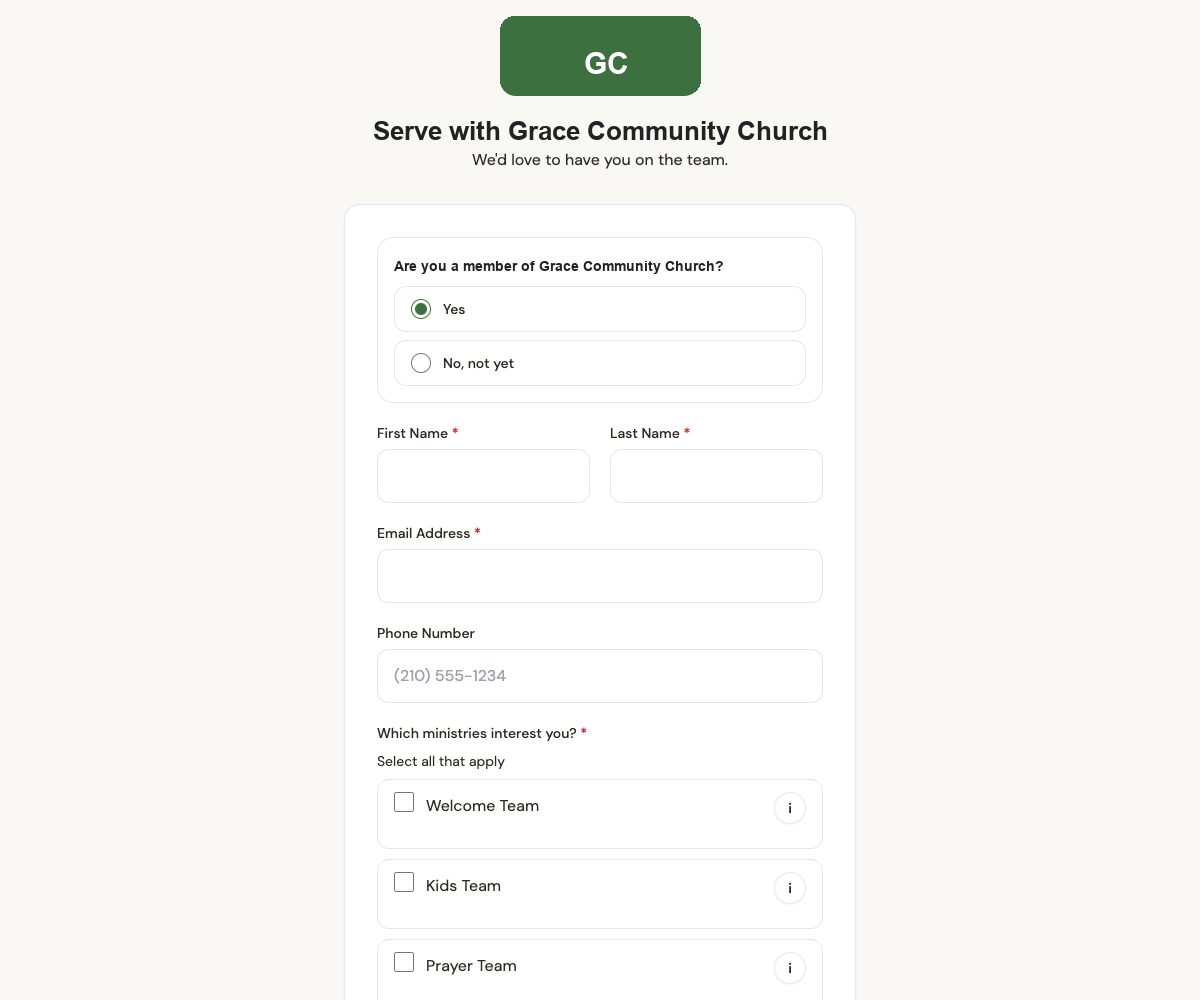
On Sunday morning, a volunteer can raise their hand from a public form branded for your church. Put the link in your bulletin, behind a QR code at the welcome desk, or on your website. When a volunteer signs up, the right ministry teams can be notified without waiting for someone to forward a message.
- A membership question routes members and guests to the right next step
- Volunteers pick the ministries they're drawn to, all in one pass
- Email or text notifications can alert the appropriate leaders when the form is submitted
- No account or app download required to submit the form
The right leader gets the message
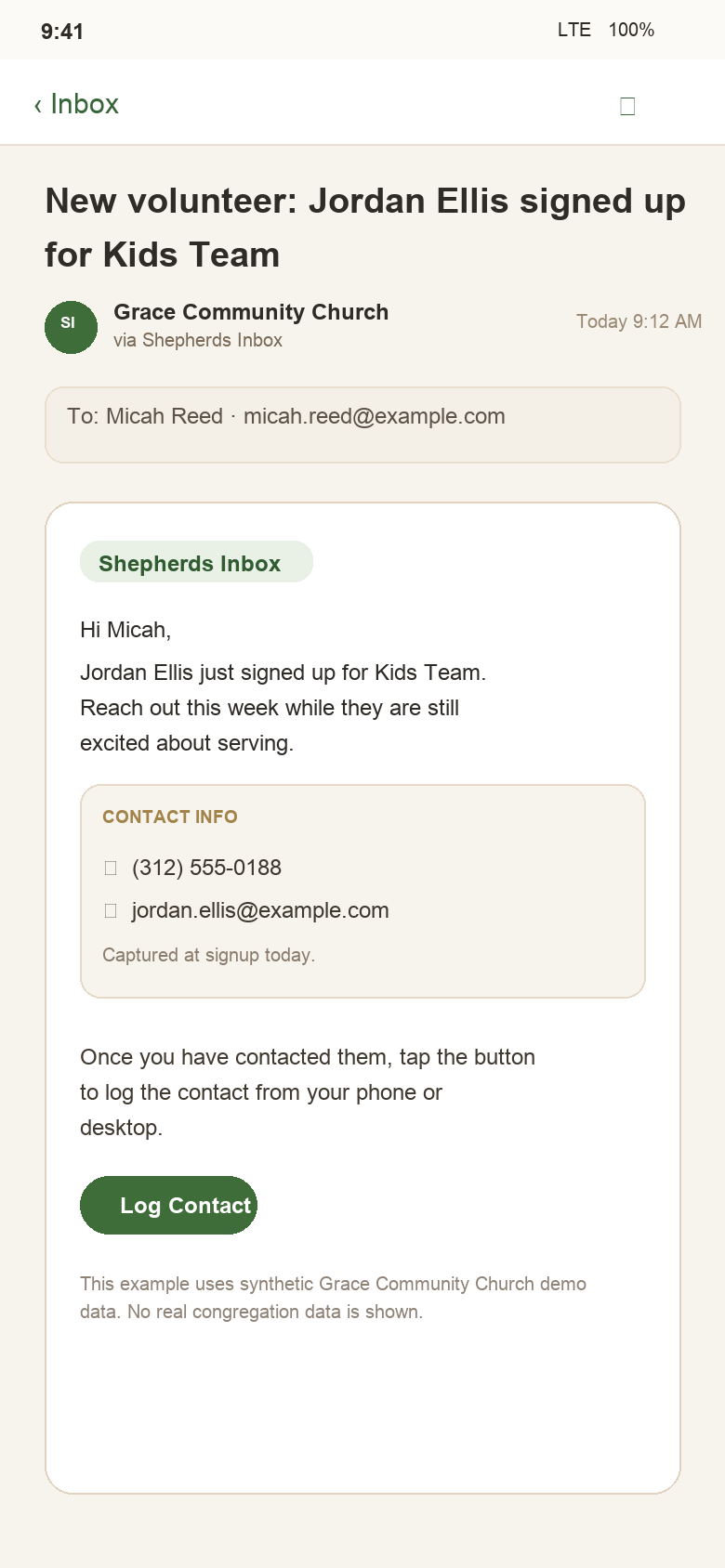
As soon as the form is submitted, Shepherds Inbox can notify the right ministry leader or coordinator by email or text. The message includes the volunteer's contact info and a direct path back to the app.
- Leader notifications are tied to the ministry selected on the form
- If someone selects multiple ministries, each appropriate ministry team can be notified
- The message points leaders toward the follow-up action, not another spreadsheet
- Notifications work alongside dashboard reminders so the handoff stays visible
The leader sees who needs follow-up
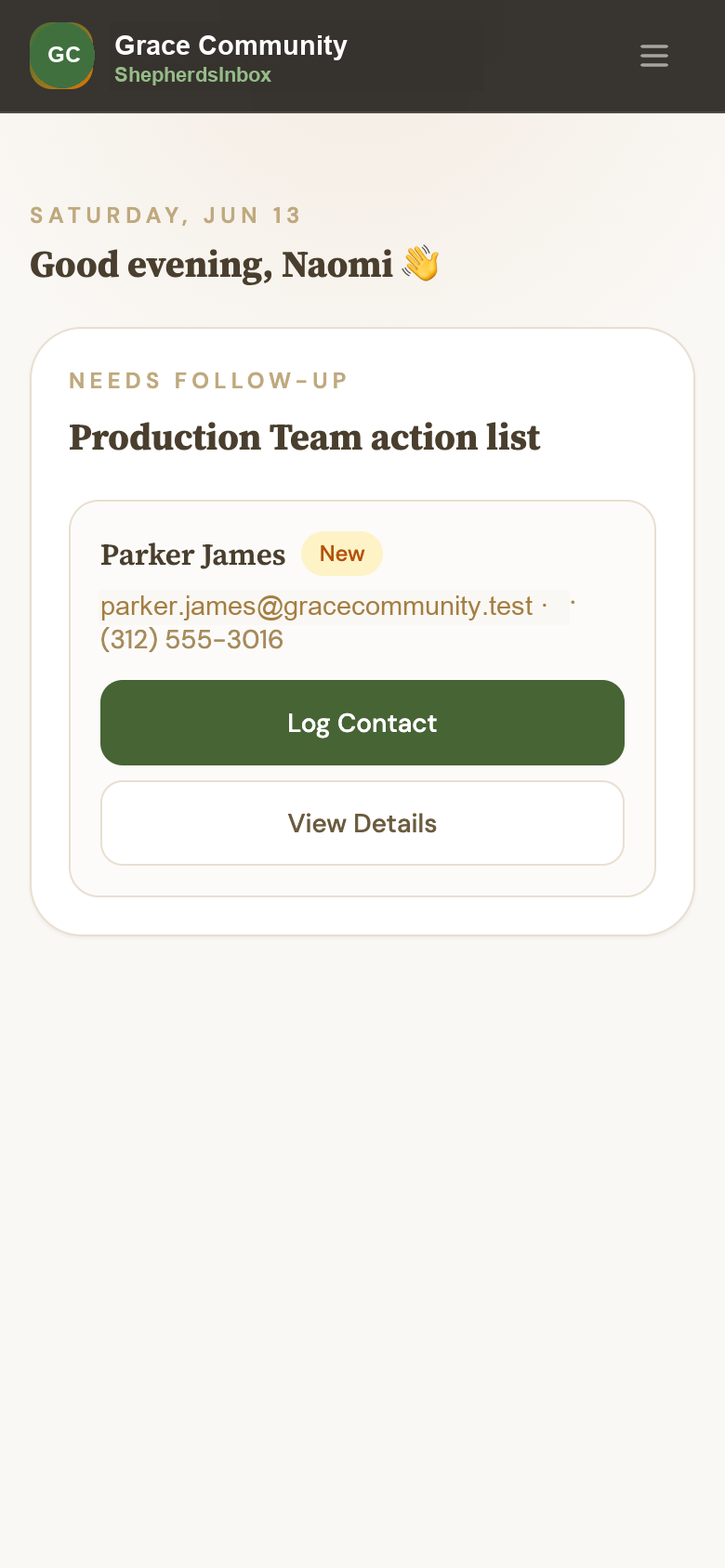
From their phone, the leader sees the people waiting on their ministry — not the whole church queue.
- Needs Follow-up cards show the volunteer, assigned ministry, and days waiting
- Overdue follow-ups are clearly flagged
- Leaders can open the full record or log contact from the queue
- Admins still keep visibility, but leaders can move the work forward themselves
Follow-up gets recorded right away
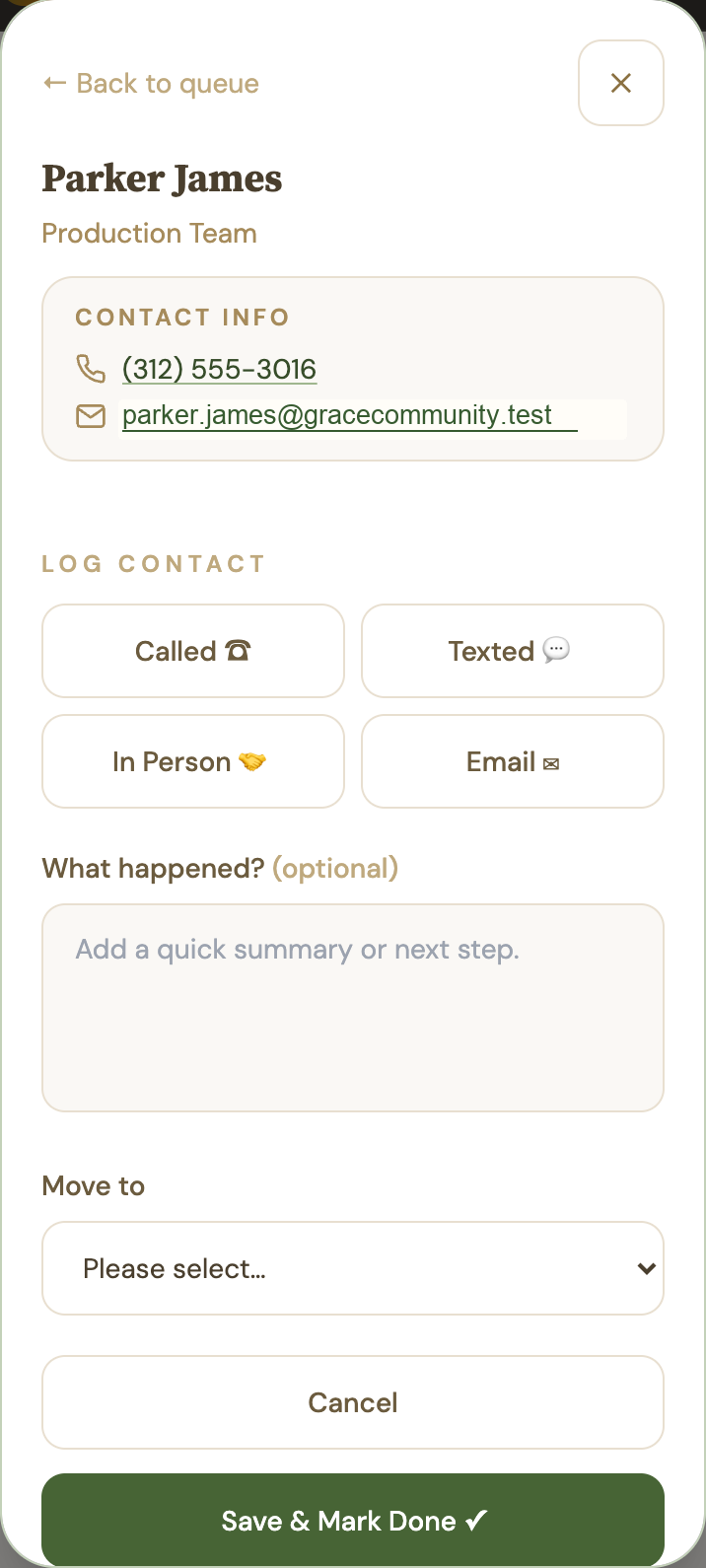
After a call, text, email, or in-person conversation, the leader can log what happened before the details get lost. That turns a private follow-up into shared ministry visibility.
- Log the contact type: called, texted, email, or in person
- Add a short note so the next leader has context
- Mark someone reached when real contact happens
- Keep the history attached to the volunteer instead of buried in personal inboxes
Admins can see who still needs attention
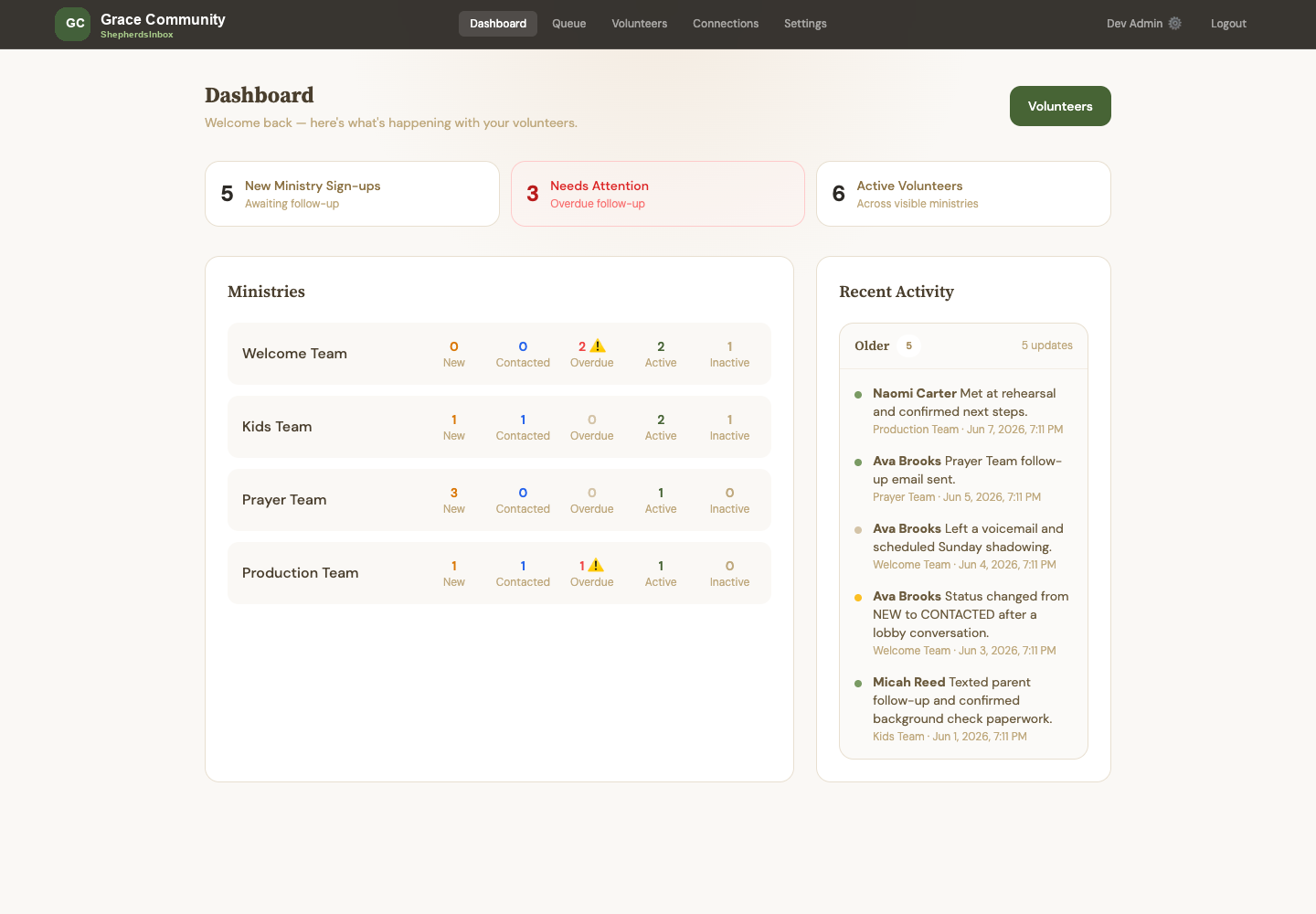
Admins do not have to chase every conversation manually. They can see which follow-ups are still waiting, overdue, or recently updated.
- New sign-ups, overdue follow-ups, and active volunteers, front and center
- Each ministry's counts — new, contacted, overdue, active — in one table
- A recent activity feed so the whole team sees what's been done
- Notification and reminder activity stays tied to the volunteer record
Everyone keeps the same context
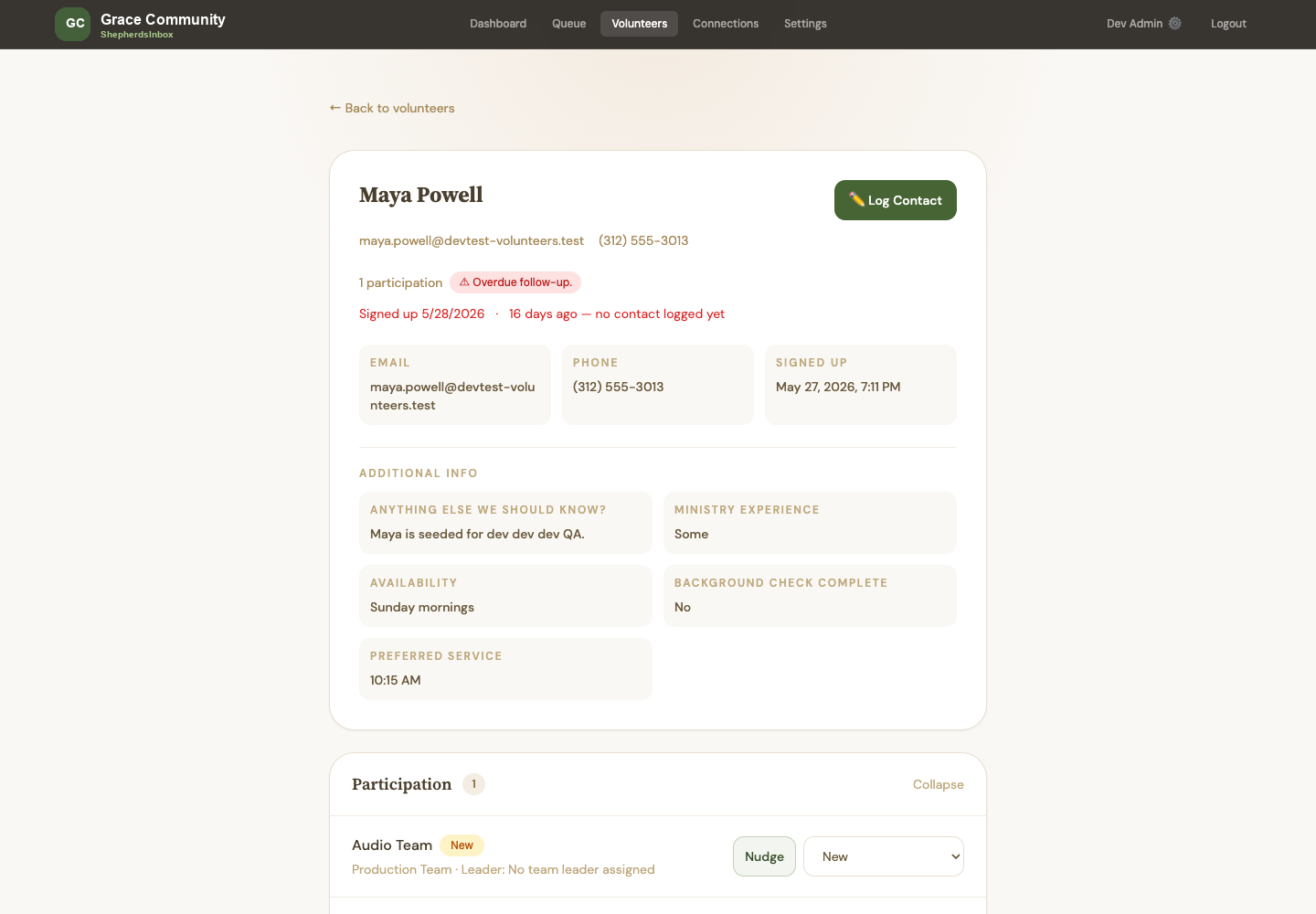
The volunteer record keeps contact details, ministry interests, custom answers, notes, and follow-up history together.
- Contact details, sign-up date, and how long they've been waiting
- Availability, preferred service, and custom form answers
- Their answers from the form, in their own words
- Every team they're part of, with follow-up history close at hand
This could be your church's Monday morning.
Volunteer Management is available now for churches ready to organize volunteer follow-up with a guided, self-serve setup. Guest Follow-up is coming next.
Start your free trialFree to join. No payment collected. Setup starts right inside Shepherds Inbox.
Screenshots use demo data for illustration only; no real congregation data appears here.